Background check (NJ criminal history clearance)
Fingerprinting through the Office of Student Protection
Where in the app: Onboarding → Background Check → Document Upload step, second card. The Schedule Fingerprinting step before it walks you through OSP and IdentoGO with our codes. · Facts last reviewed 2026-09-05Every person working in a New Jersey school must have a criminal history record check approved by the NJ Department of Education’s Office of Student Protection (OSP). The process runs on the OSP website and at an IdentoGO (Idemia) fingerprinting site, using EverTeach’s employer codes. The document we need at the end is the OSP approval — the “Applicant Approval Employment History” — not the fee receipt and not the IdentoGO appointment.
What we accept, what must be readable, what does not belong here
We accept
The NJ Office of Student Protection “Applicant Approval Employment History” (printed from the OSP site about two weeks after fingerprinting)
The OSP approval / clearance letter or email for EverTeach
If your fingerprints are still being processed: the IdentoGO appointment confirmation, so we know it is under way — we will still need the approval when it arrives
It must clearly show
Your full name
A date (approval date or fingerprint date)
EverTeach Solutions as the employer, or an archive / transfer to EverTeach
The Office of Student Protection or IdentoGO / Idemia as the issuer
The whole page, in focus, nothing cut off — a phone photo is fine if every word is readable
Not this
A TB test or any health document — those go under Health & TB
Your substitute credential — that goes under Substitute Certificate
The $10 administrative fee receipt on its own
A clearance letter issued to another employer without an archive / transfer to EverTeach
Don’t have it yet? Background Check → Schedule Fingerprinting walks you through the OSP site and IdentoGO with EverTeach’s vendor codes.
Getting the document
1. Answer the two quick questions in Schedule Fingerprinting
They decide your path: New applicant (never fingerprinted for a NJ school), Archive (fingerprinted for a NJ school before, your record is on file with OSP) or Transfer (currently cleared for another NJ school employer). The step then shows the matching IdentoGO instructions PDF with EverTeach’s codes.
2. New applicant — pay the OSP fee and book IdentoGO
On the OSP site choose New Administration Fee Request, enter EverTeach’s codes, pay the administrative fee, and print the confirmation page. Then schedule your fingerprinting with IdentoGO (online or by phone) and attend with a photo ID.
3. Archive or Transfer — request it on the OSP site
Choose the Archive or Transfer request, enter EverTeach’s codes, pay the fee if one applies, and keep the confirmation page — that is your Clearance transfer / archive proof.
4. About two weeks later, print your approval
Sign back in to the OSP site and open Applicant Approval Employment History. It lists you, EverTeach Solutions as the employer, and the approval date. Save it as a PDF or a full-page screenshot — that is the file for this card.
What it looks like — examples
Illustrative example with made-up details — not a real document, not an official form. Real documents differ in layout; the numbered details are what must be readable.Example — OSP “Applicant Approval Employment History”
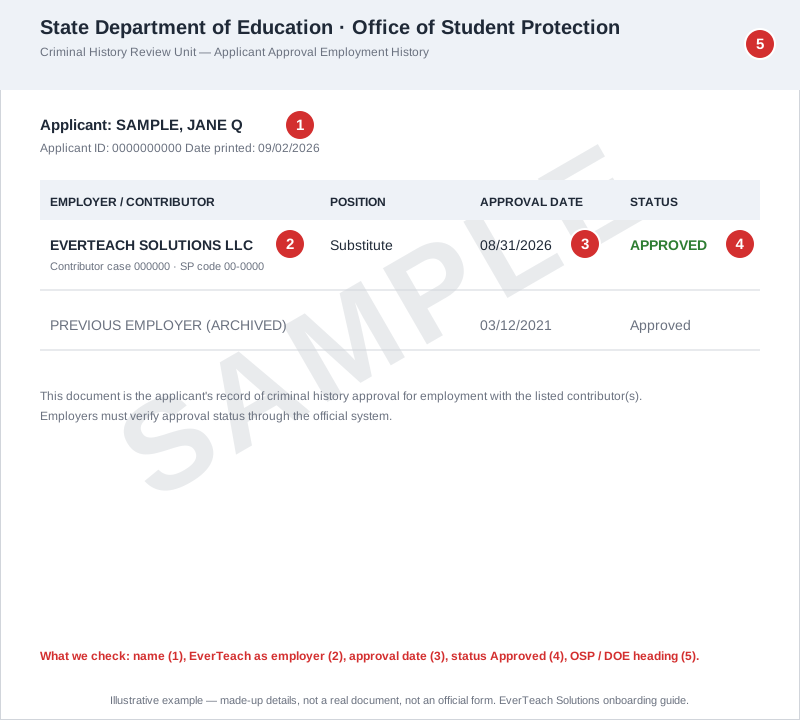
The final clearance printed from the OSP website. Layout is the state’s and may change; the numbered details are what we check.
- Your full name (and applicant ID)
- EverTeach Solutions listed as the employer
- Approval date
- Status — Approved
- Office of Student Protection / NJDOE heading
Accepted while you wait — IdentoGO appointment confirmation
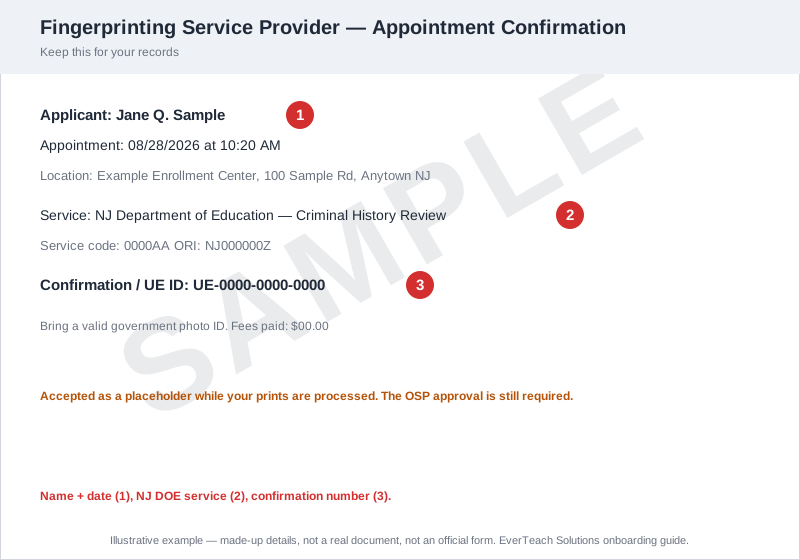
Shows your fingerprinting is under way. We still need the OSP approval when it arrives.
- Your name and the appointment date
- Service — NJ Department of Education
- Confirmation or UE ID number
Not this — a TB test result
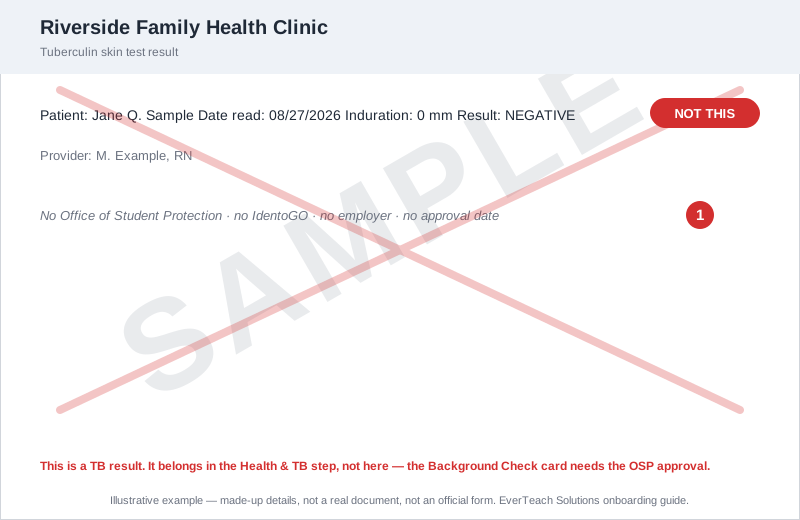
The most common wrong upload in this card. A TB result belongs in the Health & TB step.
- A clinic or lab heading, a test result — no OSP, no IdentoGO, no employer
Uploading it in EverTeach
1. Open Background Check → Document Upload
Sign in, open Onboarding → Background Check, and go to the Document Upload step. In New Jersey the Schedule Fingerprinting step before it asks two quick questions that decide whether you need a new appointment, an archive request or a transfer — answer those first.
2. Read the card’s “What to upload & what we check”
Each of the three cards — Government ID, Background Check, Clearance transfer / archive proof — lists what we accept and what does not belong there. The transfer card only appears when your answers say you need it.
3. Upload the file
Click Upload Document and pick a PDF, JPG or PNG under 5 MB. For your government ID you can also type its issue and expiration dates — optional, but it saves our team reading them off the scan.
4. Check your upload in the review window
Your file opens next to the checklist for that card. Confirm every line, then click “Yes, this is my …” — or replace the file if it is the wrong one. This is the moment to catch a TB result or a certificate that ended up in the wrong step.
5. Submit for review
Once the required documents are uploaded the check goes to our team. A rejected document comes back on the same card with the reason and an “Upload again” button, plus an email and an in-app message.
Questions we hear often
I was fingerprinted for another school company — do I need to do it again?
Usually not. If your clearance is current with another NJ school employer you request a Transfer; if it is older or lapsed you request an Archive. The Schedule Fingerprinting step tells you which.
Who pays?
See “Who pays for fingerprinting?” in Support — the answer depends on your path and any promotion in force.
Can I upload the fee receipt?
Only as a placeholder. The step is complete when the OSP approval is on file.