Substitute certificate (NJDOE credential)
Your New Jersey substitute credential
Where in the app: Onboarding → Substitute Certificate step (after your district is chosen in Background Check step 1). · Facts last reviewed 2026-09-05To substitute in a New Jersey public school you need a credential issued by the New Jersey Department of Education through its NJEdCert system: a Substitute Credential (Instructional, Career & Technical, School Nurse or Educational Interpreter) or a standard instructional certificate. Since January 2021 credentials are issued digitally — there is no paper certificate in the mail. The document we need is the “Printable View” of your credential from NJEdCert.
What we accept, what must be readable, what does not belong here
We accept
The credential from NJEdCert: My Certifications → your License ID → “Printable View”, saved as PDF or a screenshot
A paper county substitute credential issued before 2021
A standard NJ instructional certificate (CE, CEAS, Standard) if you hold one
It must clearly show
Your full name
The credential or certificate type (e.g. “Substitute Credential – Instructional”)
The License / certificate number
Issue date and expiration date (if printed)
The New Jersey Department of Education as the issuer
Not this
The NJEdCert application receipt or fee confirmation — that is not a credential yet
A credential evaluation report (WES, ECE, etc.) — that supports the application but is not the certificate
Diplomas or transcripts
A criminal history approval letter — that goes under Background Check
Don’t have it yet? Apply through NJEdCert (an NJDOE account, the state fee, official transcripts); the credential appears under My Certifications once NJDOE issues it.
Getting the document
1. If you already hold a credential, download it from NJEdCert
Sign in to NJEdCert, open My Certifications on your home page, click the blue License ID of your credential, then choose Printable View. Save it as a PDF (Print → Save as PDF) or take a full-page screenshot. That is the file to upload.
2. If you need to apply: create your NJEdCert account
Go to njdoe.my.site.com and register as an educator with the email you check most. NJDOE emails you a “Welcome to the NJEdCert Portal” message with a log-in link; the link asks you to complete your profile before it lets you set a password. The email also states your username — keep it.
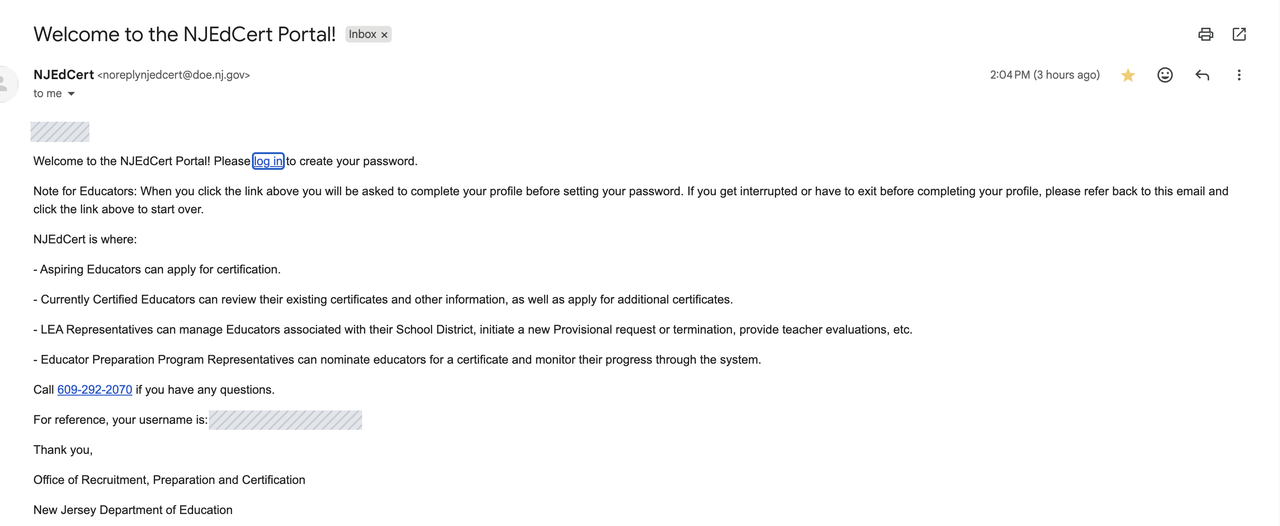 Screenshot captured 2026-09-05. The screen may look a little different today — the steps are the same.
3. Click Apply Now on your home page
After signing in you land on the NJEdCert home page: your educator name and tracking number at the top, then the My Certifications, My Applications and My Cases tabs. My Certifications is empty until NJDOE issues something. Click the blue Apply Now button.
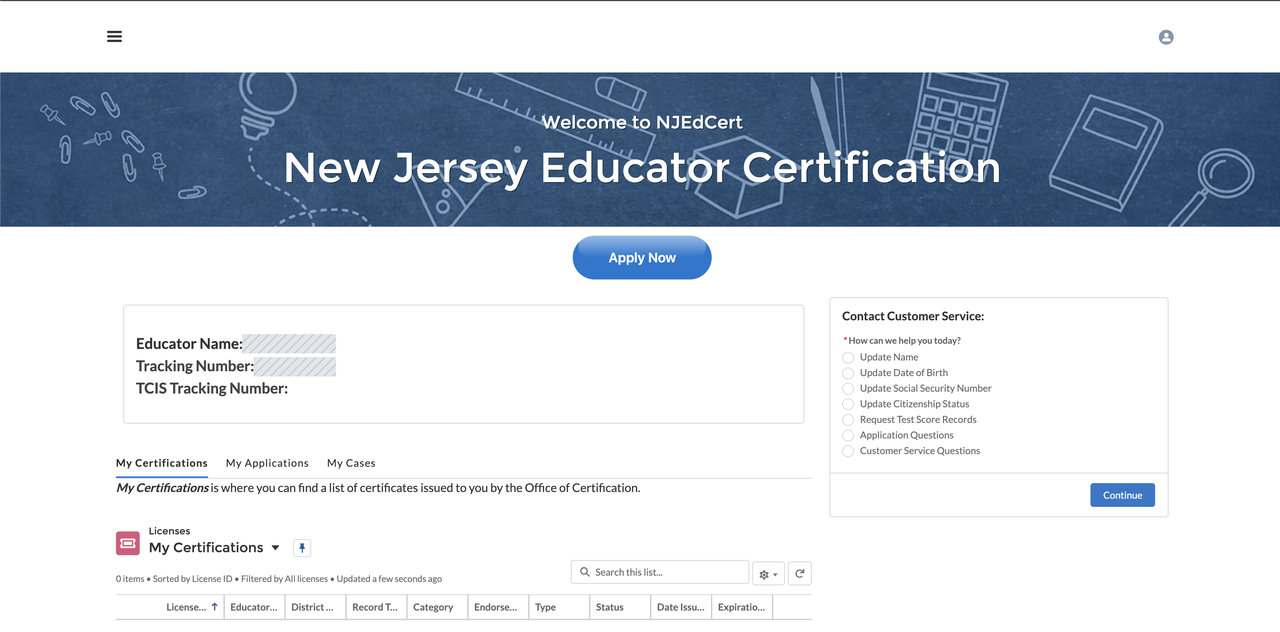 Screenshot captured 2026-09-05. The screen may look a little different today — the steps are the same.
4. Read “Before You Begin”, then Continue
This page is worth reading once. Two lines matter most for substitutes: applications are not reviewed until payment and all documentation are in, and a paid application that is still missing documents expires after six months. Fees are non-refundable.
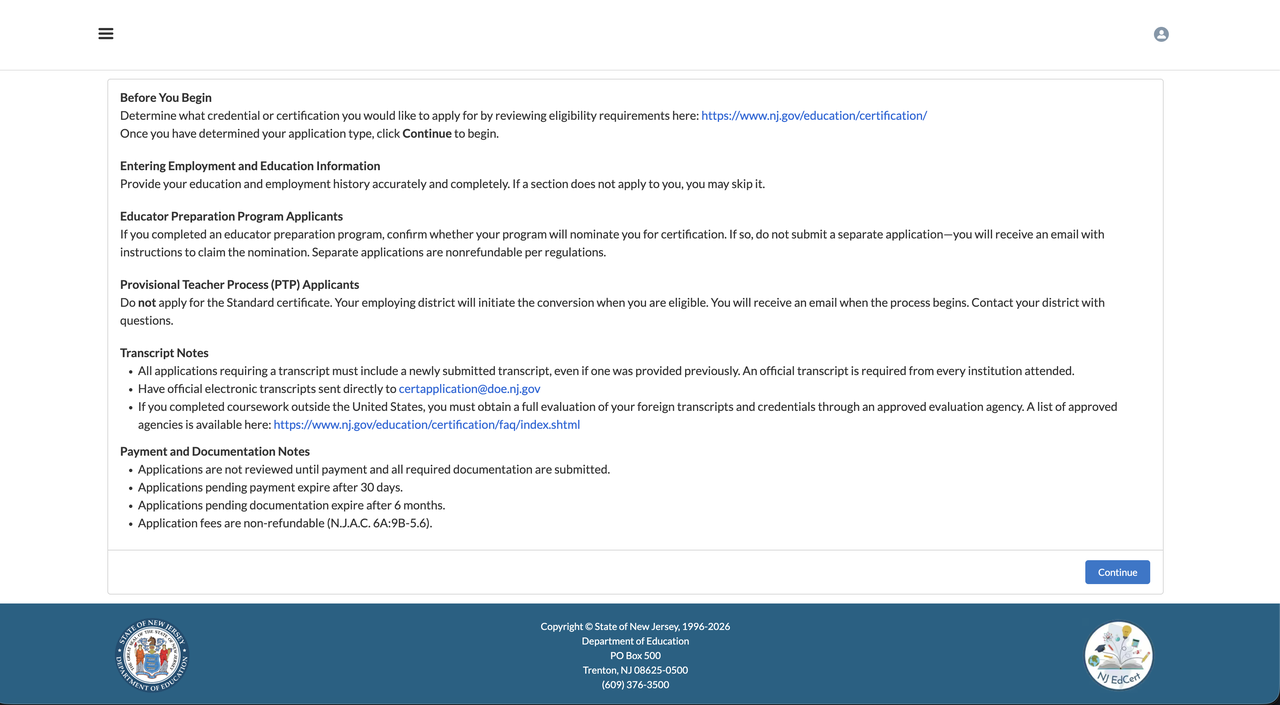 Screenshot captured 2026-09-05. The screen may look a little different today — the steps are the same.
5. Answer the education questions
NJEdCert first asks whether you have a degree from an accredited college or university, then for each school: whether it is in New Jersey, in the United States, which country, when you attended, and whether you graduated. Answer for every college you attended — the Instructional substitute credential needs at least 30 college credits, which can come from an unfinished degree.
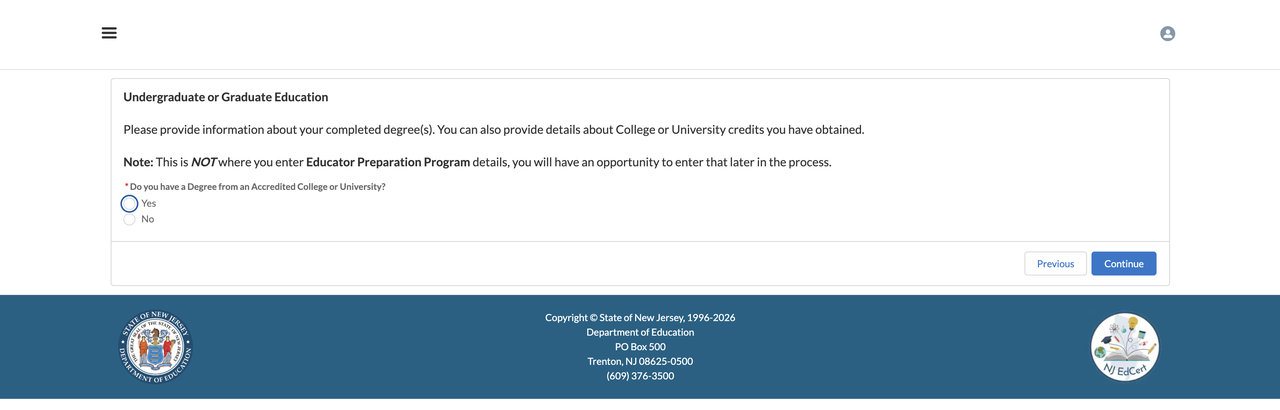 Screenshot captured 2026-09-05. The screen may look a little different today — the steps are the same.
6. Educated outside the United States? You need an evaluation report
If any school is outside the US, NJDOE will not read the foreign transcript itself. You need a course-by-course Foreign Credential Evaluation (FCE) from an agency on NJDOE’s approved list, and it must be sent to NJDOE by the agency. Order it before you apply if you can — it typically takes a few weeks — and have the report in hand when you fill in the school details. The evaluation report supports the application; it is not the credential, so do not upload it to us.
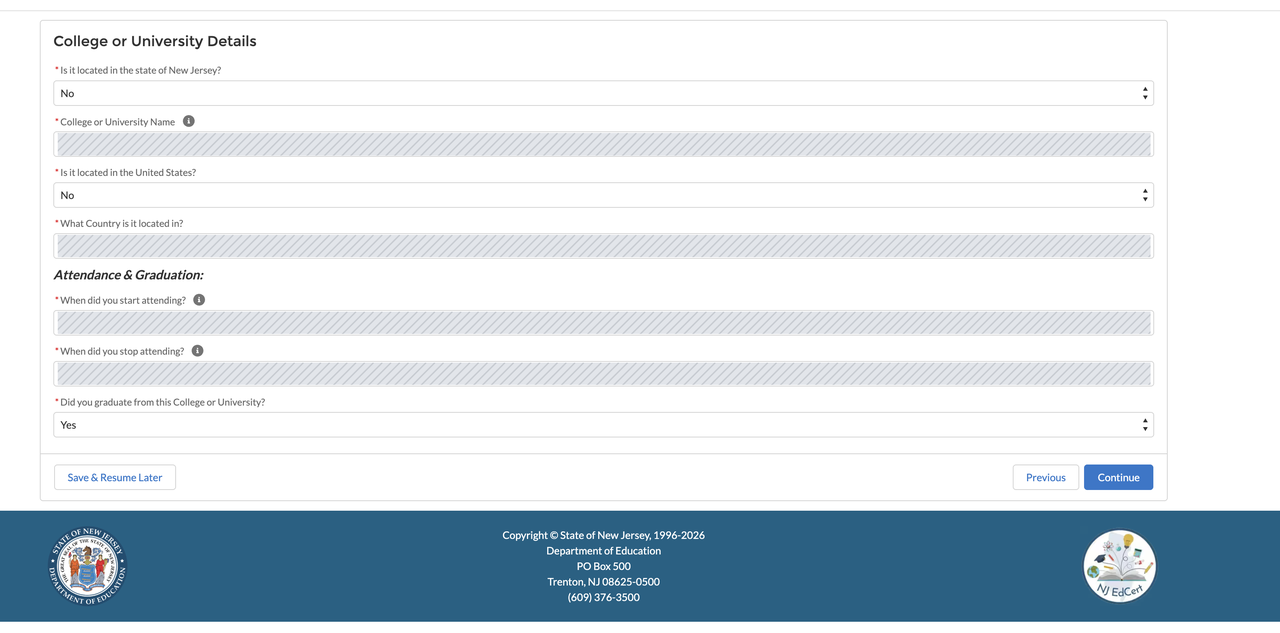 Screenshot captured 2026-09-05. The screen may look a little different today — the steps are the same.
7. Stopped part-way? Use Save & Resume Later
Every page after the first has a Save & Resume Later button. NJEdCert confirms “Your progress has been saved”; to continue, sign back in and use the Resume button in the Saved Applications section of the home page. Then choose the substitute credential that matches your education, pay the state fee, and submit.
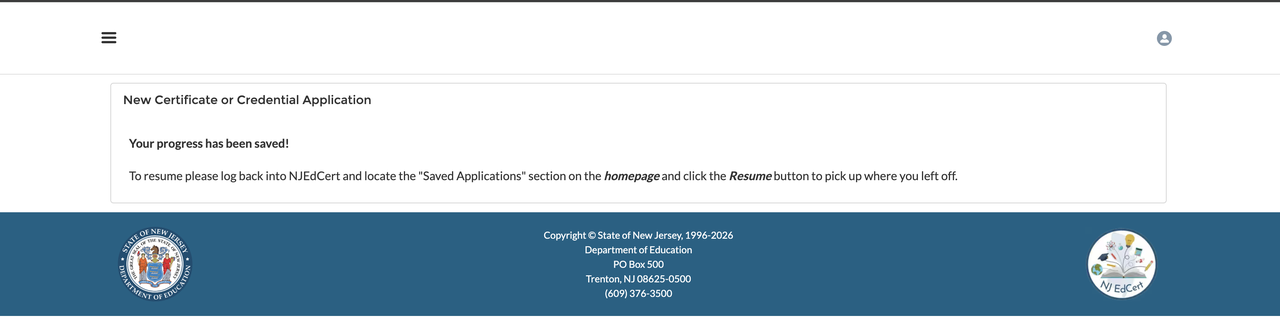 Screenshot captured 2026-09-05. The screen may look a little different today — the steps are the same.
8. After you submit
The application shows under My Applications with a receipt; the credential itself appears under My Certifications only once NJDOE approves it. A criminal history background check approved within the last five months is also required, which is why the Background Check step runs alongside this one.
9. Waiting for NJDOE?
Tell us in the step’s message box or via “Need help?” — we can see your application receipt, but the step is not complete until the credential itself is issued.
What it looks like — examples
Illustrative example with made-up details — not a real document, not an official form. Real documents differ in layout; the numbered details are what must be readable.Example — NJEdCert “Printable View” of a substitute credential
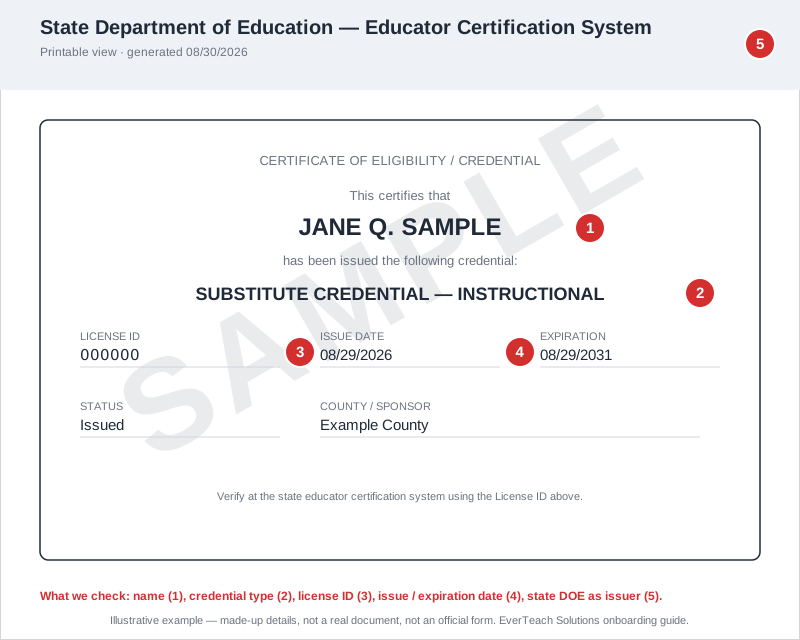
What the credential looks like when printed from NJEdCert. The exact layout is NJDOE’s and changes over time; the numbered fields are what we check.
- Your full name
- Credential type — e.g. Substitute Credential, Instructional
- License / certificate ID number
- Issue date and, where printed, expiration date
- New Jersey Department of Education as the issuer
Not this — the NJEdCert application receipt
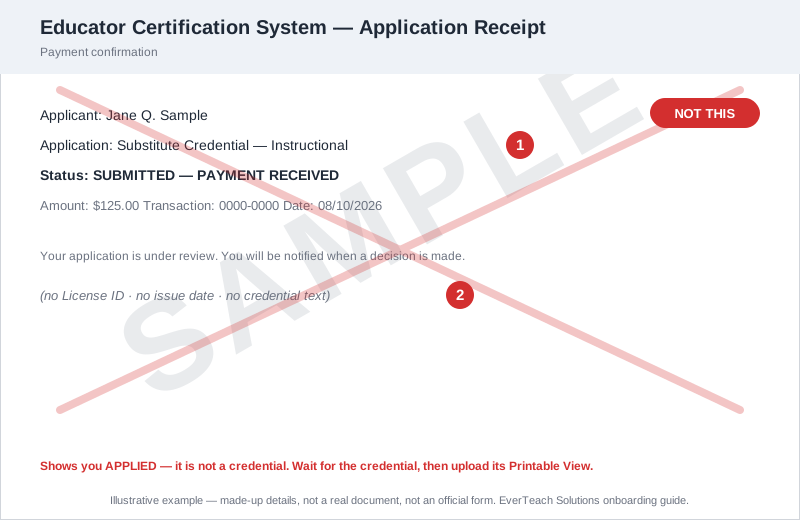
A fee receipt or application confirmation shows you applied; it is not a credential and cannot be accepted in this step.
- Says “Application” / “Payment received”, not “Credential”
- No license ID and no issue date
Uploading it in EverTeach
1. Open the Substitute Certificate step
Sign in, open Onboarding, choose Substitute Certificate, and tick the acknowledgement. The upload card appears underneath.
2. Read “What to upload & what we check” on the card
Each card lists what we accept, what must be readable, and what does not belong there. If your file does not match, get the right document first — a wrong upload only adds a round trip.
3. Choose your file
Click Choose file and pick a PDF, JPG or PNG under 10 MB. A phone photo is fine when every word on the page is readable and nothing is cut off. You can also type the test date so we can remind you before it expires — optional.
4. Check your upload in the review window
Straight after the upload, your file opens next to a checklist. Look at each line and confirm your file shows it. If it does, click “Yes, this is my …”. If it does not — wrong document, blurry, cut off — click “No — replace this file” and choose another.
5. Wait for review
The card shows “Pending review”. Our team checks it within 1–2 business days. If something is missing you get an email and an in-app message naming the document and the reason, and the card shows “Rejected – re-upload” with the reason.
Questions we hear often
My credential was issued by another county — is it valid?
Yes. A substitute credential issued in any New Jersey county is valid statewide.
Can I upload my credential evaluation (WES, ECE) here?
No. The evaluation report supports your NJDOE application but it is not a certificate. Upload the NJEdCert credential once it is issued.
How long do I have once I start an NJEdCert application?
NJDOE states that an application pending payment expires after 30 days and one pending documentation expires after six months. Fees are non-refundable, so line up transcripts and, if needed, the foreign credential evaluation before you pay.
Which evaluation agencies does NJDOE accept?
Only agencies on NJDOE’s approved list, linked from the certification FAQ page below. Ask for a course-by-course evaluation sent directly to NJDOE.